> ## Documentation Index
> Fetch the complete documentation index at: https://docs.polygona.io/llms.txt
> Use this file to discover all available pages before exploring further.
# Supported Features
> Overview of the key Blender features supported in Polygona
# Supported Blender Features
Polygona supports a range of Blender features to enhance your 3D model customization. These features can be categorized into three main groups: object types, modifiers, and parameters.
## Object Types
Current supported object types: `Mesh`
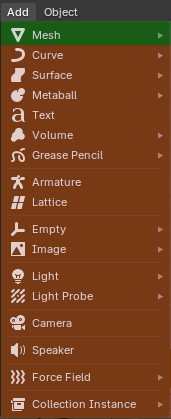 ### Mesh Objects
* Single mesh object per file
Support for multiple objects per file is planned for future updates.
## Modifiers
Below are the modifier types currently supported in Polygona:
Not all modifier settings may be fully supported. Complex modifier stacks might result in unexpected behavior.
### Edit Modifiers
* Data Transfer
* Mesh Cache
* Mesh Sequence Cache
### Generate Modifiers
* Array
* Bevel
* Boolean
* Build
* Decimate
* Edge Split
* Mask
* Mirror
* Multires
* Remesh
* Screw
* Skin
* Solidify
* Subdivision Surface
* Triangulate
* Volume to Mesh
* Weld
* Wireframe
### Deform Modifiers
* Armature
* Cast
* Curve
* Displace
* Hook
* Laplacian Deform
* Lattice
* Mesh Deform
* Shrinkwrap
* Simple Deform
* Smooth
* Smooth Corrective
* Smooth Laplacian
* Surface Deform
* Warp
* Wave
### Geometry Nodes
Geometry Nodes are supported, but there are a few important points to keep in mind:
1. **Expose parameters through the Group Input node:**
To make parameters available in Polygona, expose them through the Group Input node in your Geometry Nodes setup.
### Mesh Objects
* Single mesh object per file
Support for multiple objects per file is planned for future updates.
## Modifiers
Below are the modifier types currently supported in Polygona:
Not all modifier settings may be fully supported. Complex modifier stacks might result in unexpected behavior.
### Edit Modifiers
* Data Transfer
* Mesh Cache
* Mesh Sequence Cache
### Generate Modifiers
* Array
* Bevel
* Boolean
* Build
* Decimate
* Edge Split
* Mask
* Mirror
* Multires
* Remesh
* Screw
* Skin
* Solidify
* Subdivision Surface
* Triangulate
* Volume to Mesh
* Weld
* Wireframe
### Deform Modifiers
* Armature
* Cast
* Curve
* Displace
* Hook
* Laplacian Deform
* Lattice
* Mesh Deform
* Shrinkwrap
* Simple Deform
* Smooth
* Smooth Corrective
* Smooth Laplacian
* Surface Deform
* Warp
* Wave
### Geometry Nodes
Geometry Nodes are supported, but there are a few important points to keep in mind:
1. **Expose parameters through the Group Input node:**
To make parameters available in Polygona, expose them through the Group Input node in your Geometry Nodes setup.
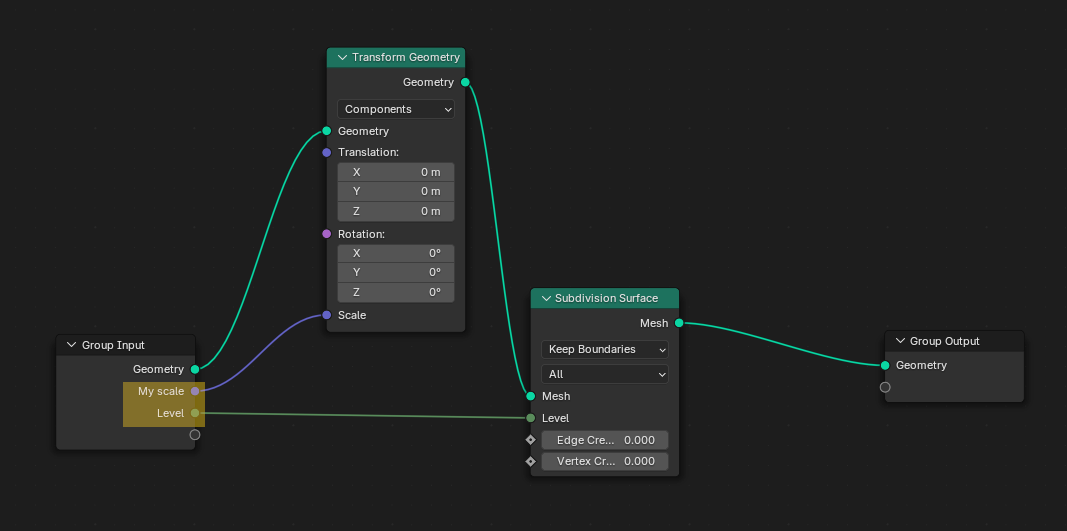 In this case, "My scale" and "level" will be available in Polygona.
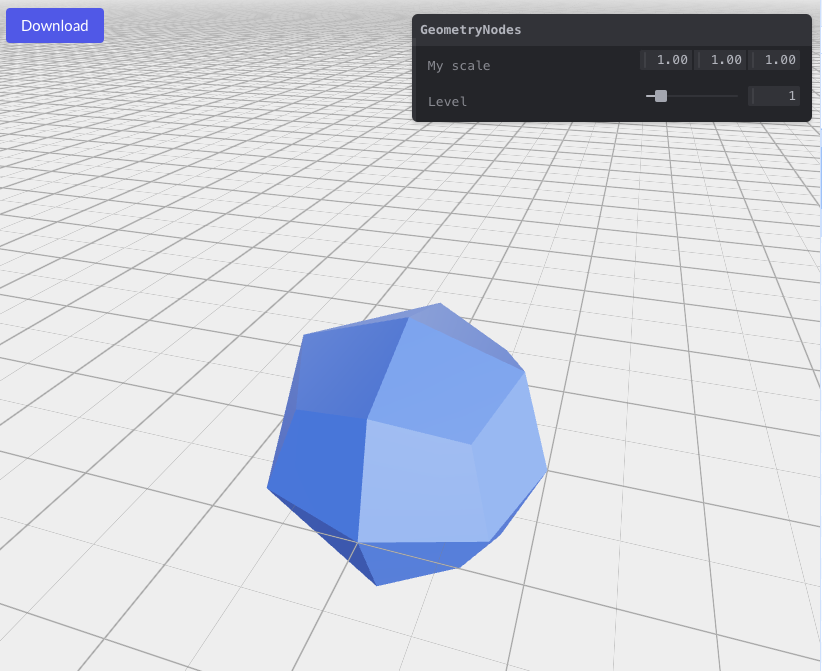 2. **Set min/max values and rename parameters:**
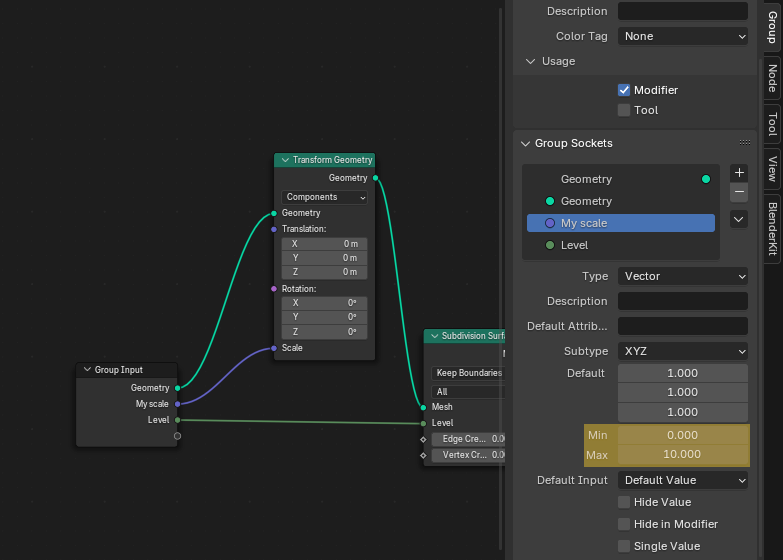
* Set min/max values for your parameters in the Group Input node to define their range in Polygona.
* You can rename a parameter by double-clicking on its name if you wish to display a different name in Polygona.
2. **Set min/max values and rename parameters:**
* Set min/max values for your parameters in the Group Input node to define their range in Polygona.
* You can rename a parameter by double-clicking on its name if you wish to display a different name in Polygona.
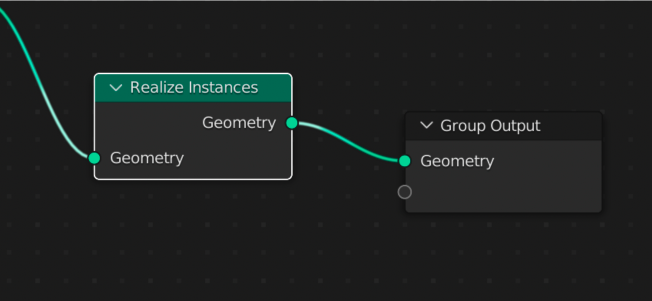
 3. **Add a Realize Instances node:**
Make sure to add a Realize Instances node before your Group Output node to ensure the geometry is correctly exported.
3. **Add a Realize Instances node:**
Make sure to add a Realize Instances node before your Group Output node to ensure the geometry is correctly exported.
 You can download a sample Geometry Nodes file [here](https://asset-storage-polygona.lon1.cdn.digitaloceanspaces.com/samples/geometry-nodes-sample.blend) to see these concepts in action.
## Parameters
These are the parameters that are currently supported:
* Float
* Integer
* Boolean
* Enum
* Value
* Vector
Support for other parameter types will be added in the future.
## Limitations and Future Plans
* Currently, only a single mesh object per file is supported
* External assets must be packed into the .blend file
* External plugins are not supported
* File size limit of 20MB
We are continuously working to expand our supported features. Future updates may include support for multiple objects and more complex modifiers.
You can download a sample Geometry Nodes file [here](https://asset-storage-polygona.lon1.cdn.digitaloceanspaces.com/samples/geometry-nodes-sample.blend) to see these concepts in action.
## Parameters
These are the parameters that are currently supported:
* Float
* Integer
* Boolean
* Enum
* Value
* Vector
Support for other parameter types will be added in the future.
## Limitations and Future Plans
* Currently, only a single mesh object per file is supported
* External assets must be packed into the .blend file
* External plugins are not supported
* File size limit of 20MB
We are continuously working to expand our supported features. Future updates may include support for multiple objects and more complex modifiers.